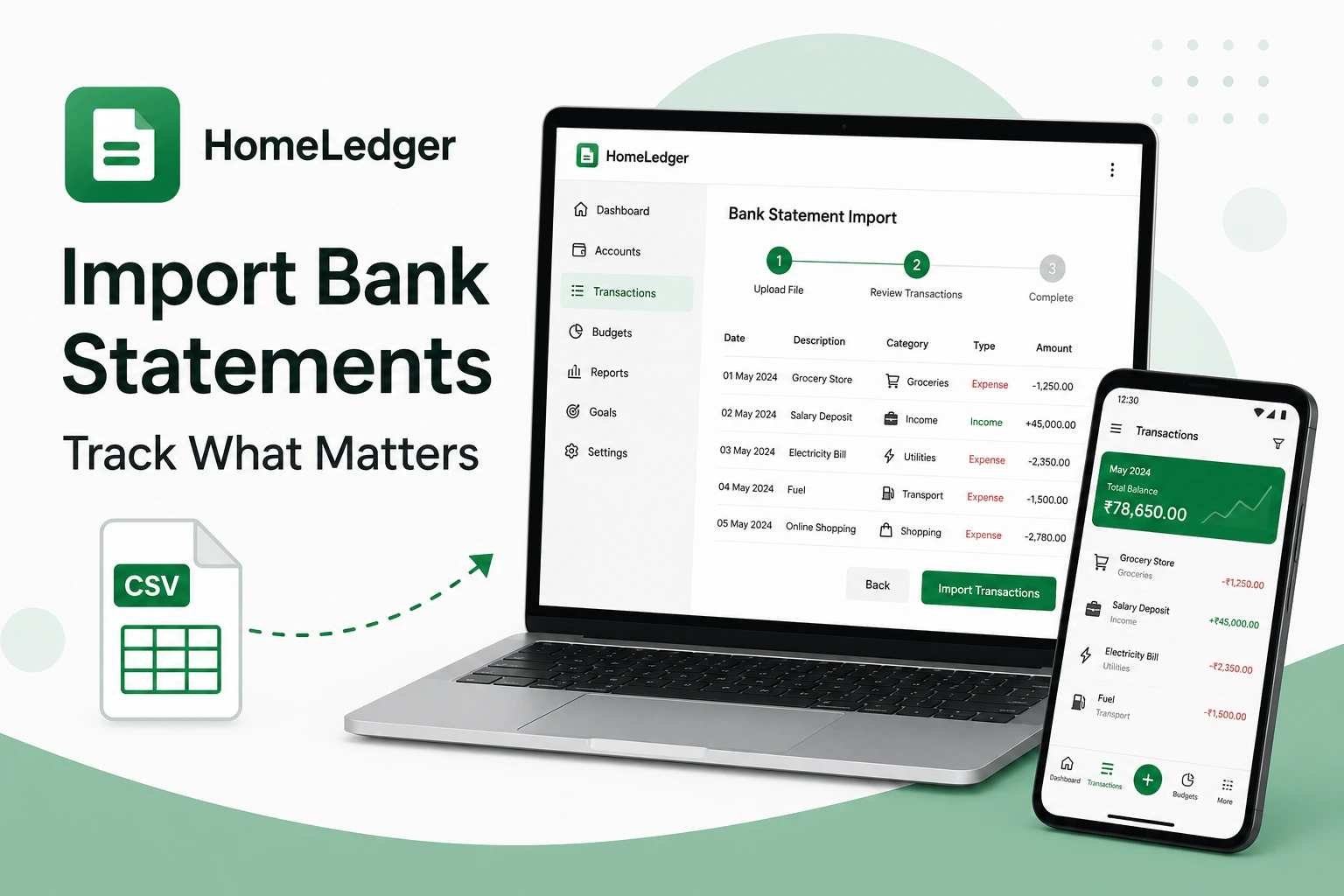
Importing a statement can help you catch up on household expenses without entering every bank transaction by hand. HomeLedger's Statement Import feature reads a supported file on your device, lets you map columns and review the resulting transactions, and saves the importable records to the account you selected.
Before you begin: Statement Import is a beta feature. The workflow below is based on the application source reviewed on 25 November 2026. Update your app and check the controls available on your device; web preview and released Android versions may differ.
| File or account | Support |
|---|
| CSV (.csv) | Compatible bank-exported transaction tables |
| Excel (.xls, .xlsx) | First worksheet is read |
| PDF | Not supported |
| Password-protected Excel | Remove the password locally before importing |
| Destination account | Active Bank or Cash account |
| Archived and other account types | Not eligible for statement import |
Use a statement exported directly from your bank when possible. Converting a PDF to CSV can introduce misplaced columns or incorrect dates. HomeLedger does not connect to your bank or initiate payments.
Step 1: Choose an account and statement
Open Accounts in HomeLedger, select the active Bank or Cash account that matches your statement, and choose Import statement. Select the file using Choose statement file.
Check the account's starting balance first. Importing historical transactions into an account that already includes those amounts can distort the recorded balance.
Step 2: Map your statement columns
The mapping screen lets you associate statement headers with HomeLedger's date, description and amount fields. It can suggest mappings based on common header names; check them rather than assuming the suggestions are correct.
There are two amount layouts:
- Separate debit and credit columns: withdrawals are outflows and deposits are inflows. Select both columns.
- Single signed amount: negative values represent outflows and positive values represent inflows.
Use clear dates such as YYYY-MM-DD where practical. Ambiguous numeric dates may be interpreted differently from your bank's convention. Future dates, zero amounts and rows with invalid dates are skipped. A row with both a positive debit and credit is also skipped.
Example of a debit and credit statement
The following hypothetical data illustrates a four-column bank export. It is not a real bank statement or a guaranteed format for every institution.
| Date | Description | Debit | Credit |
|---|
| 2026-11-01 | Salary example | | 50000 |
| 2026-11-02 | Rent example | 15000 | |
| 2026-11-03 | Groceries example | 2500 | |
Map Date to the date field, Description to the note field, Debit to the debit field, and Credit to the credit field. The expected inflow is ₹50,000, outflow ₹17,500 and net movement ₹32,500. These figures are a worked example, not a verified import result.
For Excel, put the transaction table on the first worksheet. Keep the original file as a backup and avoid including credentials or unnecessary sensitive details in exported descriptions.
Step 3: Review the mapping preview
Review the mapped dates and amounts. Confirm the direction of incoming and outgoing money, and check the descriptions. Imported rows use category defaults; review transaction categories after importing so your budget totals reflect the correct spending purpose.
If the preview does not match your statement, go back and correct the mapping before proceeding.
Step 4: Review duplicates and skipped transactions
The Preview import screen shows the number of importable transactions, duplicates and skipped rows, along with income and expense totals.
Duplicate detection compares the destination account, direction, date, amount rounded to two decimal places and normalized description. It checks both existing transactions and duplicates in the file.
This is a matching rule, not a guarantee of perfect deduplication. Identical legitimate purchases can look like duplicates, and changed descriptions can cause the same transaction to be missed. Inspect the preview and reconcile with your original records.
The current workflow imports the eligible rows as a batch; it does not provide a per-row selection control in the reviewed preview screen. If you need to exclude additional rows, prepare a separate copy of the file and import that instead.
Step 5: Confirm and reconcile the import
Choose the Import transactions button only when the preview matches your expectations. The app creates the records, updates account balances and attempts to record import history. Check the completion counts for failures.
There is currently no bulk undo for a statement import. Start with a small date range if you are importing for the first time. If some records fail, inspect the resulting account history before retrying to avoid duplicate entries.
After import, review categories, balances and transfers. A bank withdrawal or deposit is not necessarily household spending or income: transfers between your own accounts need particular care to avoid double counting.
Use the household budget calculator or the free Excel budget template to review monthly spending.
Troubleshooting statement import
| Problem | What to check |
|---|
| Unsupported file | Export CSV, XLS or XLSX from the bank rather than PDF |
| Password-protected workbook | Remove the password in a local copy using trusted software |
| No column headers found | Use a bank-style transaction table with clear headers and at least four populated header columns |
| Empty preview | Check date, amount and debit/credit mappings |
| Wrong income or expense direction | Confirm the signed amount convention or debit/credit mapping |
| Duplicate warning | Compare account, date, amount and description with existing records |
| Account balance differs | Reconcile starting balance, transfers and overlapping statement periods |
| Partial import failure | Review imported and failed counts before retrying |
For help, contact HomeLedger with your device, app version, a description of the problem and a redacted example of the headers. Do not send your original statement, account numbers, PINs, OTPs or banking credentials.
How statement data is handled
The source implementation reads CSV text or an Excel workbook locally and turns it into mapped transaction rows. On confirmation, the transaction details are sent to the household data store. These can include dates, amounts, categories, notes and account associations. The original statement file is not uploaded as a file by this import workflow.
Keep in mind that imported records are shared household records, not private notes visible only to the importing member. Review what you import and who belongs to the household. Read the privacy policy for the broader data-handling policy.
Frequently Asked Questions
Can HomeLedger import Excel bank statements?
Yes, the reviewed beta implementation accepts XLS and XLSX files and processes the first worksheet. CSV is also supported. Formats vary by bank.
Can I import a PDF or a password-protected statement?
No. Obtain an unprotected compatible CSV or Excel export from your bank, or remove the password locally from a workbook you are authorized to access.
Does HomeLedger connect directly to my bank?
No. Statement Import works with local files you choose; it does not require internet banking credentials.
Does importing a statement update my account balance?
Yes. Imported inflows and outflows update the selected account. Reconcile the opening balance and overlapping transactions before importing historical data.
Can I undo a bank statement import?
The current workflow does not offer bulk undo. Review the preview carefully and start with a small batch.
Will every duplicate be detected?
No matching rule can guarantee that. Review the duplicate and skipped rows and compare the import results against your records.
Start with a small statement
Try a short date range first, verify the results, then import additional periods as needed. Explore the bank statement expense tracker and HomeLedger's features, or the web preview, and check whether Statement Import is available on your device.